

Navexa June Update: Finding Tools, Recording Sales And Navigating The New Platform

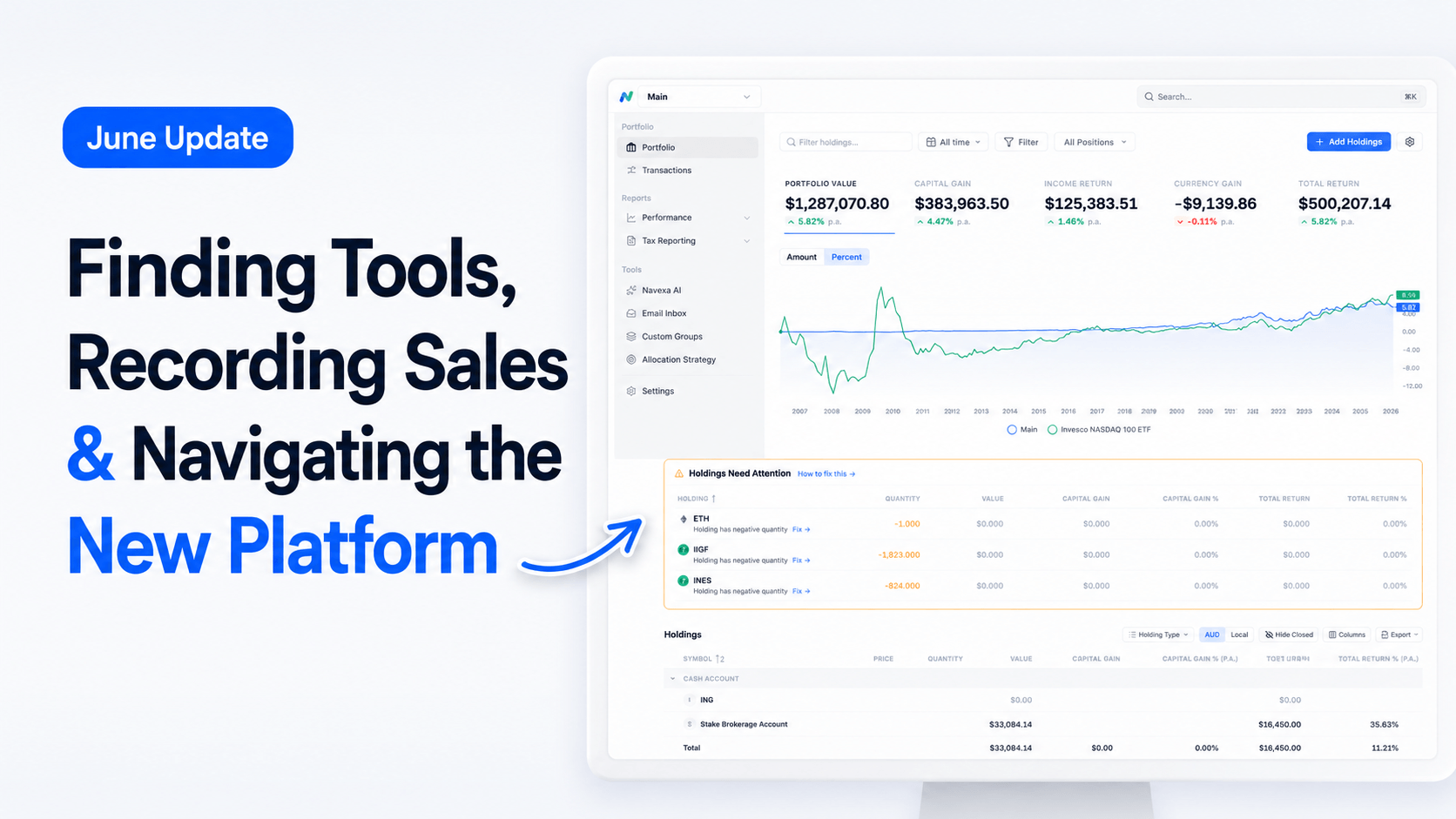
This month’s Navexa update is based on feedback from customers who used both the old Navexa platform and the new one.
We’re currently running a short survey inside Navexa. It closes on 21 June, and the feedback so far has been constructive and useful.
A lot of users have told us the new platform feels cleaner and easier to use, which is great to hear. But some of the most helpful feedback has been around finding tools, reports and workflows that may have moved compared with the old platform.
So for this June update, we’re focusing on a few practical things customers asked about:
- where to find exports
- how to record a sale
- how the portfolio, holding, Trades and Income areas work
- where to find the Income Calendar
- where to find tax reports
- where to check dividends that need attention
- how to switch between light and dark mode
Where to find exports
One piece of feedback we received was that exports were harder to find in the new platform.
The main thing to know is simple:
If a page supports exporting, the export option should appear on that page, usually near the top with the other page controls.
For example, on the portfolio page, you may be able to export your holdings. Some pages allow export to Excel or PDF. Other reports have their own export options depending on what data is shown.
Not every page has an export option. Some pages show data that does not translate neatly into a spreadsheet or PDF.
But where export is available, it should be shown in a consistent place: near the top of the page, alongside the other controls for that page.
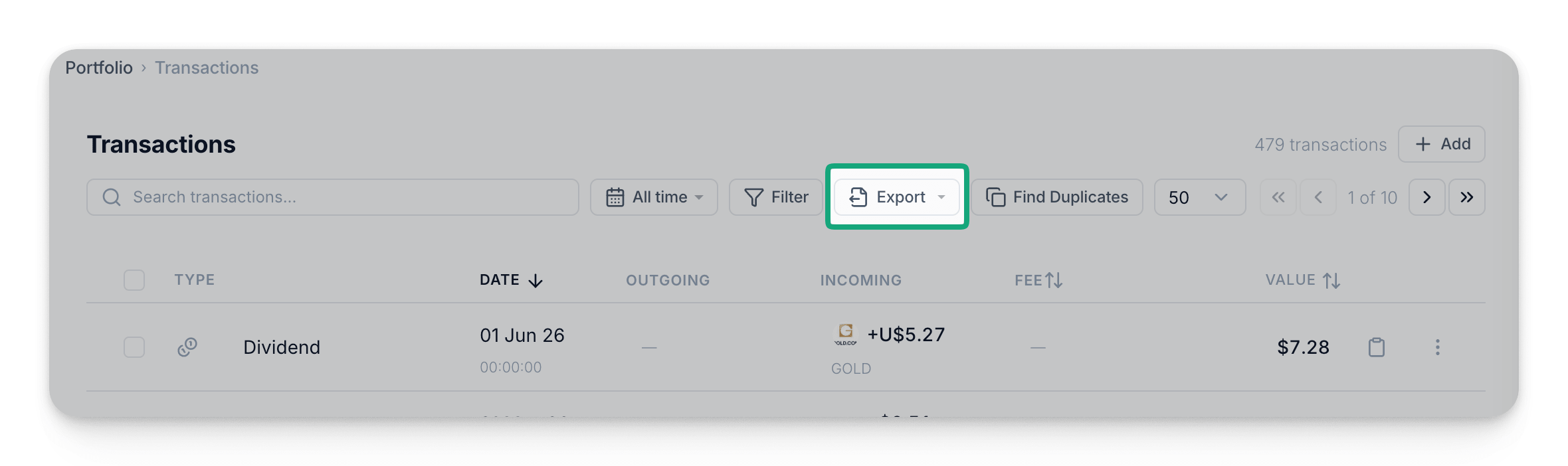
You can also export from the Transactions page. This is useful if you want to export all transactions, or filter the page first and export a more specific set of records, such as dividends, a particular holding, exchange or group.
How the new Navexa platform is structured
One thing that can make the new platform easier to use is understanding how it is arranged.
At the top level, you have your Navexa account.
Inside your account, you may have one or more portfolios.
Inside each portfolio, you have your holdings.
.png)
A simple way to think about it:
- Portfolio level: where your holdings live
- Holding level: where you manage the activity for one specific holding
- Trades tab: where you record buy, sell and other position-related activity
- Income tab: where you record or review income, such as dividends and distributions
So if you want to add a new investment, start from the portfolio.
If you want to add something that happened to an existing investment, open that holding first.
How to record a sale
Another piece of feedback we received was that recording a sale was not always obvious.
The easiest way to think about it is this:
A sale is recorded as a sell trade inside the holding’s trade history.
For example, if you want to record a sale for BHP, open your BHP holding first.
From the holding page:
- Go to the Trades tab.
- Select Add trade.
- Choose Sell.
- Enter the sale details.
- Save the trade.
For shares and ETFs, the available trade types may include buys, sells, splits, bonus issues, consolidations, cancellations, returns of capital, cost base adjustments and opening balances.
You do not need to use all of these for a normal sale.
For a standard sale, choose Sell.
Trades tab vs Income tab
The Trades tab and Income tab serve different purposes.
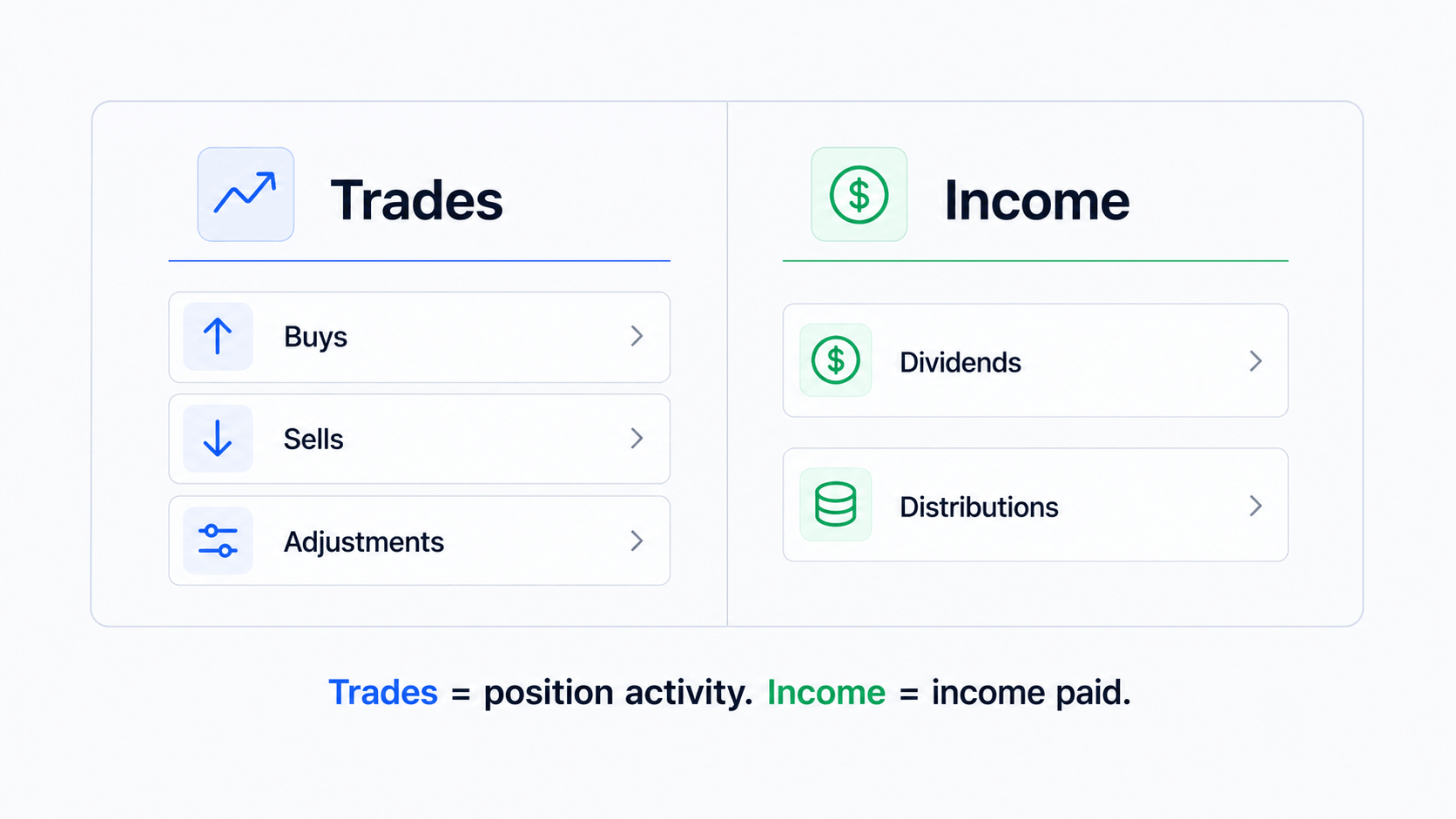
Trades tab
The Trades tab is for activity that affects your position in the holding.
That may include:
- buys
- sells
- transfers
- corporate actions
- cost base adjustments
- opening balances
If the transaction changes the number of units you hold, or affects the holding’s position history, start with the Trades tab.
Income tab
The Income tab is for income connected to that holding.
For shares and ETFs, this is usually where you review or add dividends and distributions.
For example, if you want to add a dividend for a share holding, open the holding, go to Income, and select Add dividend.
The simple rule is:
Trades are for position activity. Income is for income paid by the holding.
You can also add transactions from the Transactions page
The Transactions page is another way to add or review activity across your portfolio.
From the Transactions page, select Add.
From there, you can choose what type of transaction you want to add, such as:
- stock or security
- crypto
- cash account
- custom investment
If you choose stock or security, Navexa will then ask whether you want to add a trade or a dividend.
This path gives you more flexibility, but it can involve more steps because you need to choose the transaction type and then search for the relevant holding.
For simple holding-specific actions, it is usually easier to start from the holding itself.
Where to find the Income Calendar
Another area mentioned in the survey was the Income Calendar.
The Income Calendar is available from the left-hand navigation menu under the income area.
It lets you review estimated upcoming income across your portfolio, rather than opening each holding one by one.
You can also use the search box at the top of the left-hand menu to find menu items quickly.
For example, search for “Income”, and you should see related pages such as Income Calendar and Income Breakdown.
This search box is useful if you are still getting used to the new navigation.
Where to find tax reports
Tax reports can be found from the left-hand menu under Tax Reporting.
From there, you can access reports such as:
- ATO MyTax
- Capital Gains Tax
- Taxable Income
- Tax Overview
- Tax Readiness
You can also use the search box at the top of the menu to search for specific reports.
For example, if you search for “ATO”, you can quickly find the ATO MyTax report.
If you are preparing for tax time, the Tax Reporting section is the main place to start.
How to hide or pin the sidebar
Some users prefer more screen space when reviewing reports.
You can collapse the left-hand sidebar by using the hide sidebar control at the bottom of the menu.
This gives you more space for the main page content.
You can open the sidebar again when needed, and pin it back if you prefer it to stay visible.
This can be useful if you are working on a smaller screen, or if you prefer a cleaner view while reviewing detailed reports.
Where to check dividends that need attention
If Navexa shows that dividends need attention, a good place to check is Tax Readiness.
In many cases, dividends need attention because they have not yet been confirmed.
In other cases, there may be an issue with the dividend record. For example, a dividend may have been recorded for a period where Navexa cannot see that you held the position.
From Tax Readiness, you can review the items that need attention before moving on to final tax reports.
You can also open the relevant holding directly, go to the Income tab, and review the income records for that holding.
If a dividend needs to be confirmed, check it against the relevant documentation before confirming it in Navexa.
Where to switch between light and dark mode
You can switch between light and dark mode from your account settings.
Go to the top-right area of the platform, open your account settings, then choose the display mode you prefer.
You can switch back at any time.
This is a small setting, but it can make the platform easier to work with depending on your preference and screen setup.
Keep the feedback coming
We appreciate everyone who has completed the survey so far.
If you used both the old Navexa platform and the new Navexa platform, please add your feedback before the survey closes on 21 June.
Specific feedback is the most useful.
For example:
- “I used to find this report here, now I can’t find it.”
- “This workflow takes too many clicks.”
- “This number or label is hard to understand.”
- “I expected this action to be on this page.”
That kind of feedback helps us improve the platform and create clearer help content.
You can also send feedback through the chat in the bottom-right corner of Navexa, or visit feedback.navexa.io.
We’re continuing to improve the platform based on customer feedback, especially around workflows, reporting, tax readiness and portfolio visibility.
Frequently Asked Questions
Where do I find exports in Navexa?
If a page supports exporting, the export option should appear directly on that page, usually near the top with the other page controls.
How do I record a sale?
Open the holding, go to the Trades tab, select Add trade, then choose Sell.
What is the difference between Trades and Income?
Trades are for position activity, such as buys, sells, transfers and adjustments. Income is for income records connected to the holding, such as dividends and distributions.
Where do I find the Income Calendar?
You can find it from the left-hand menu under the income area. You can also use the menu search box and search for “Income Calendar”.
Where do I find tax reports?
Tax reports are available under Tax Reporting in the left-hand menu. You can also use the menu search box to search for a specific report, such as ATO MyTax or Capital Gains Tax.
How do I switch between light and dark mode?
Open your account settings from the top-right area of the platform, then choose your preferred display mode.
Does Navexa provide tax advice?
No. Navexa provides portfolio tracking and reporting tools. It does not provide personal financial, legal or tax advice.
Disclaimer: This article is general information only. Navexa provides portfolio tracking and reporting tools, but does not provide personal financial, legal or tax advice. Platform features and plan inclusions may change, so check the latest Navexa information before relying on feature availability.


